Creating User Interfaces with Flutter
1 App Development
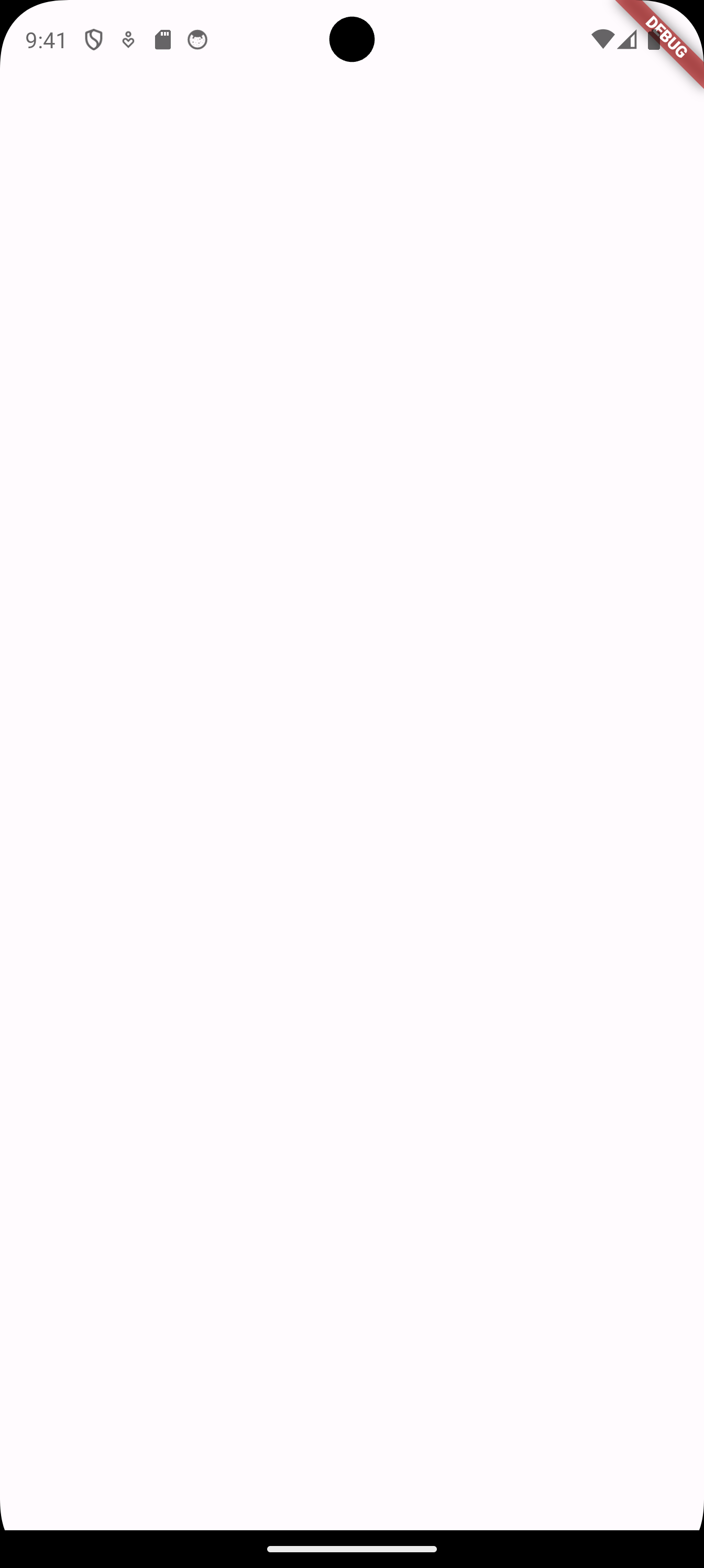
1.1 Blank App
import 'package:flutter/material.dart';
// Program execution starts here
void main(){
// run our app which is a MaterialApp
// This allows us to use Material Design
// MaterialApp is a very good choice for Android
runApp(MaterialApp(
// The home parameter specifies the screen we want to show
home: Home(),
));
}
// This is the screen we want to develop
// It inherits from StatelessWidget
// In this example, we use StatelessWidget,
// in future, we see Stateful Widget.
class Home extends StatelessWidget{
// BuildContext is an object that represents the location of a widget in the widget tree.
// It allows a widget to access information about its parent, child, and surrounding context.
@override
Widget build(BuildContext context)
{
// This holds everything inside the widget
return Scaffold(
);
}
}
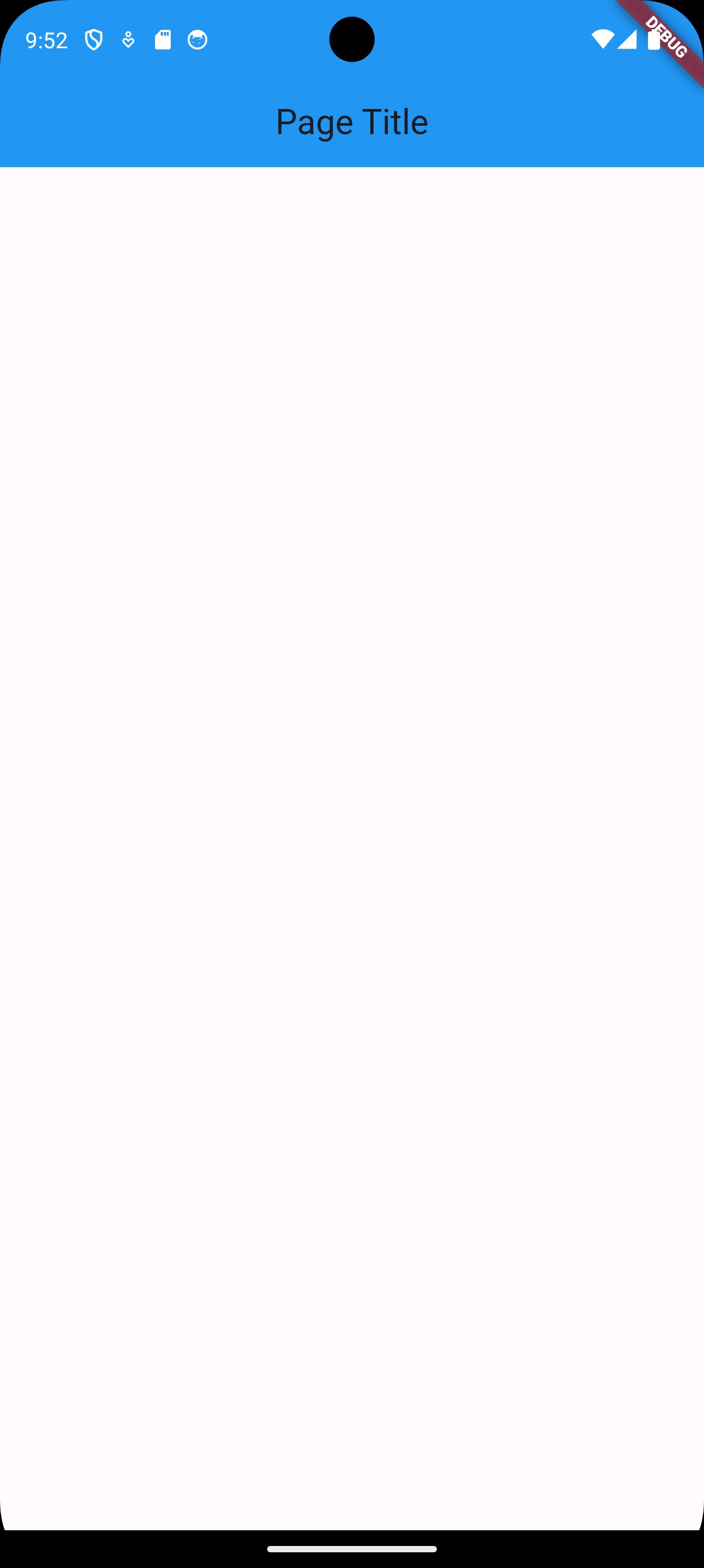
1.2 Adding an App Bar
import 'package:flutter/material.dart';
void main(){
runApp(MaterialApp(
home: Home(),
));
}
class Home extends StatelessWidget{
@override
Widget build(BuildContext context)
{
return Scaffold(
// Inside the Scaffold, we can continue building our widget tree,
// we add an AppBar
appBar: AppBar(
title: const Text('Page Title'),
centerTitle: true,
backgroundColor: Colors.blue[500],
),
);
}
}
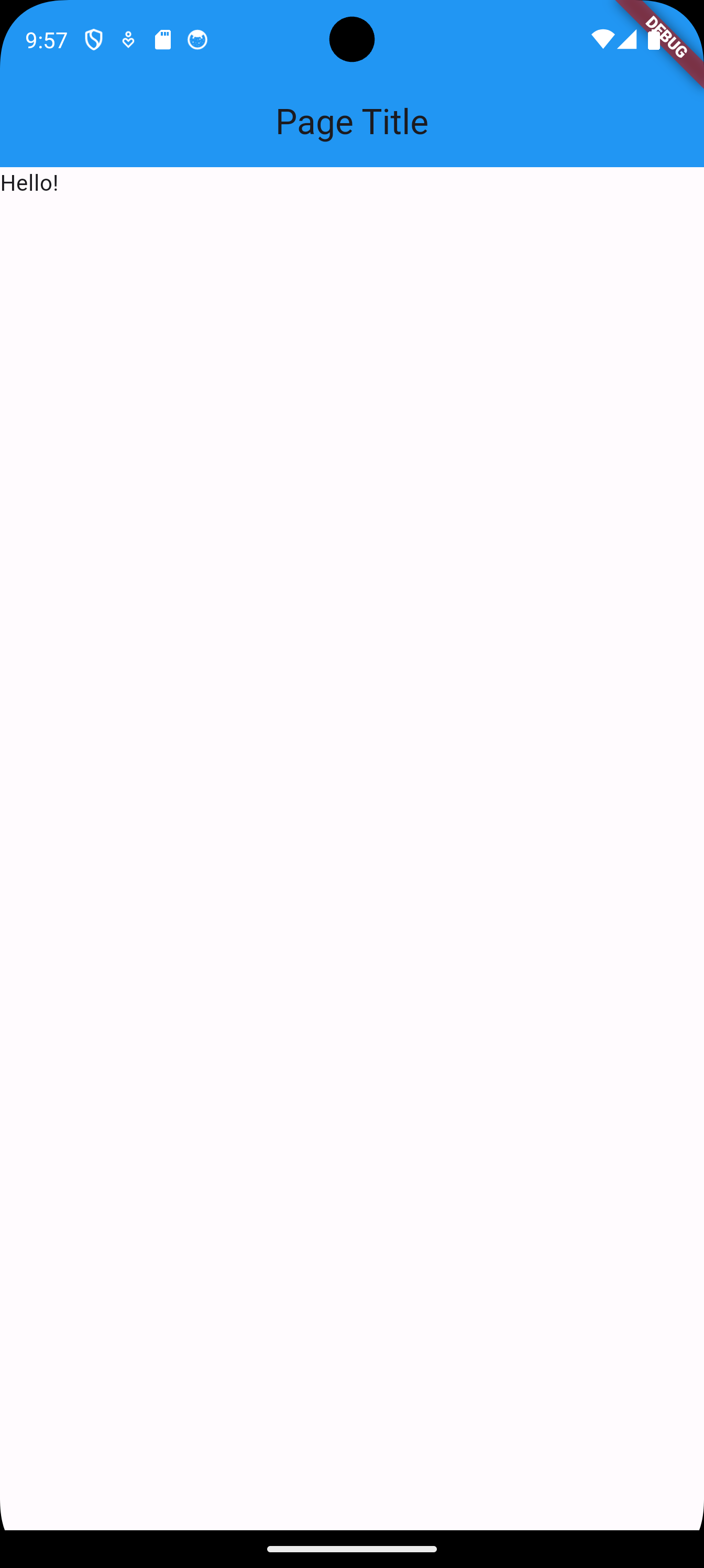
1.3 Adding a Text Widget to the Body of the Scaffold
import 'package:flutter/material.dart';
void main(){
runApp(MaterialApp(
home: Home(),
));
}
class Home extends StatelessWidget{
@override
Widget build(BuildContext context)
{
return Scaffold(
appBar: AppBar(
title: const Text('Page Title'),
centerTitle: true,
backgroundColor: Colors.blue[500],
),
// Add a Text widget to the body of the of Scaffold
body: Text('Hello!'),
);
}
}
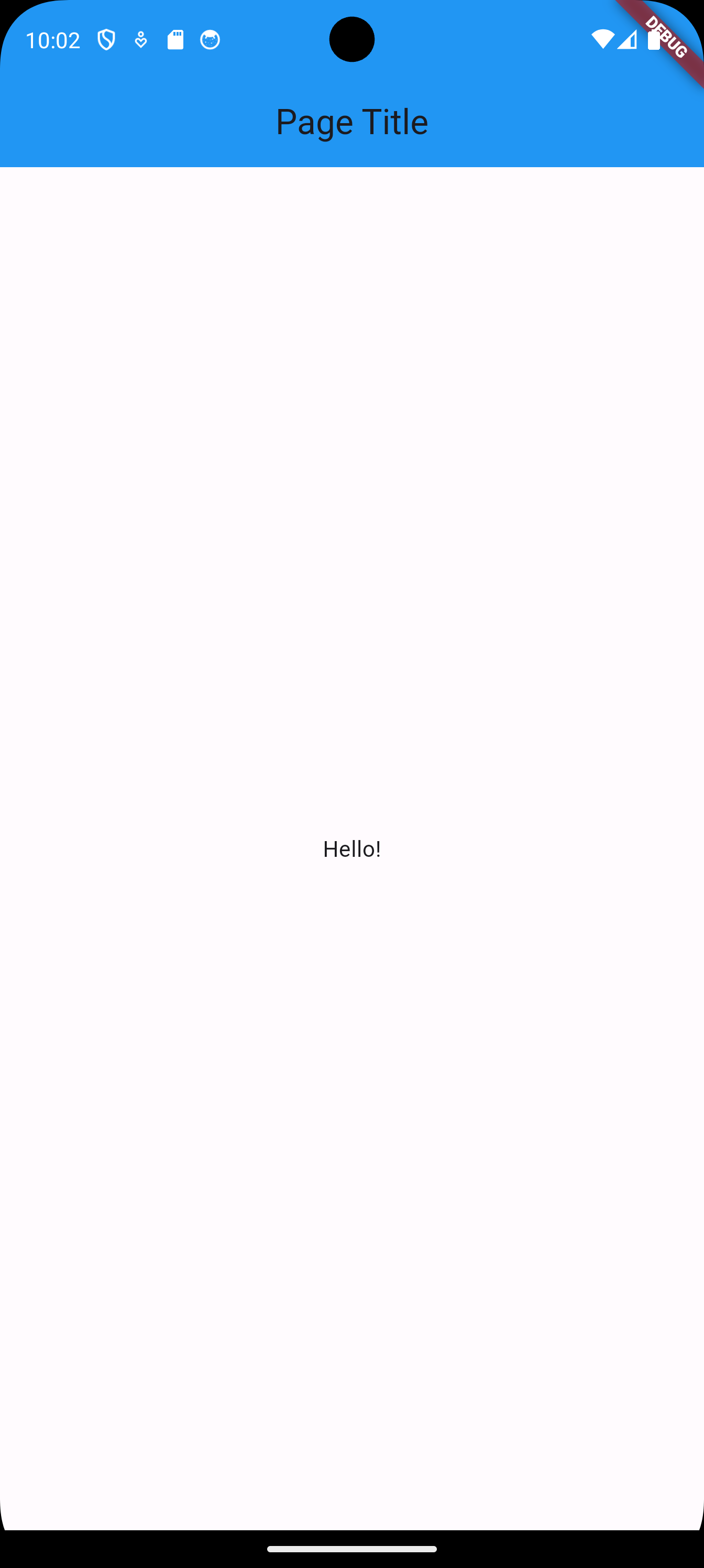
1.4 Centering the Added Text Widget
import 'package:flutter/material.dart';
void main(){
runApp(MaterialApp(
home: Home(),
));
}
class Home extends StatelessWidget{
@override
Widget build(BuildContext context)
{
return Scaffold(
appBar: AppBar(
title: const Text('Page Title'),
centerTitle: true,
backgroundColor: Colors.blue[500],
),
// Add a Center widget to the body
// It will center everything inside it
body: Center(
// Nested widgets are added using the parameter child
child: Text('Hello!'),
),
);
}
}
1.5 Changing the Text Styling
Go to https://api.flutter.dev/flutter/widgets/Text-class.html and explore the different options we have. The following is an extract of what can be used.
-
maxLines →
int?
An optional maximum number of lines for the text to span, wrapping if necessary. If the text exceeds the given number of lines, it will be truncated according to overflow. -
overflow →
TextOverflow?
How visual overflow should be handled. -
selectionColor →
Color?
The color to use when painting the selection. -
softWrap →
bool?
Whether the text should break at soft line breaks. -
strutStyle →
StrutStyle?
The strut style to use. Strut style defines the strut, which sets minimum vertical layout metrics. -
style →
TextStyle?
If non-null, the style to use for this text. -
textAlign →
TextAlign?
How the text should be aligned horizontally. -
textDirection →
TextDirection?
The directionality of the text.
Let’s say I want to use the style attribute, the documentation says it should be of type TextStyle. So let us see what TextStyle has to offer.
-
background →
Paint?
The paint drawn as a background for the text. -
backgroundColor →
Color?
The color to use as the background for the text. -
color →
Color?
The color to use when painting the text. -
debugLabel →
String?
A human-readable description of this text style. -
decoration →
TextDecoration?
The decorations to paint near the text (e.g., an underline). -
decorationColor →
Color?
The color in which to paint the text decorations. -
decorationStyle →
TextDecorationStyle?
The style in which to paint the text decorations (e.g., dashed). -
decorationThickness →
double?
The thickness of the decoration stroke as a multiplier of the thickness defined by the font. -
fontFamily →
String?
The name of the font to use when painting the text (e.g., Roboto). -
fontFamilyFallback →
List<String>?
The ordered list of font families to fall back on when a glyph cannot be found in a higher priority font family. -
fontFeatures →
List<FontFeature>?
A list of FontFeatures that affect how the font selects glyphs. -
fontSize →
double?
The size of fonts (in logical pixels) to use when painting the text. -
fontStyle →
FontStyle?
The typeface variant to use when drawing the letters (e.g., italics). -
fontVariations →
List<FontVariation>?
A list of FontVariations that affect how a variable font is rendered. -
fontWeight →
FontWeight?
The typeface thickness to use when painting the text (e.g., bold). -
foreground →
Paint?
The paint drawn as a foreground for the text. -
hashCode →
int
The hash code for this object. -
height →
double?
The height of this text span, as a multiple of the font size. -
inherit →
bool
Whether null values in this TextStyle can be replaced with their value in another TextStyle using merge. -
leadingDistribution →
TextLeadingDistribution?
How the vertical space added by the height multiplier should be distributed over and under the text. -
letterSpacing →
double?
The amount of space (in logical pixels) to add between each letter. A negative value can be used to bring the letters closer. -
locale →
Locale?
The locale used to select region-specific glyphs. -
overflow →
TextOverflow?
How visual text overflow should be handled. -
runtimeType →
Type
A representation of the runtime type of the object. -
shadows →
List<Shadow>?
A list of Shadows that will be painted underneath the text. -
textBaseline →
TextBaseline?
The common baseline that should be aligned between this text span and its parent text span, or, for the root text spans, with the line box. -
wordSpacing →
double?
The amount of space (in logical pixels) to add at each sequence of white-space (i.e., between each word). A negative value can be used to bring the words closer.
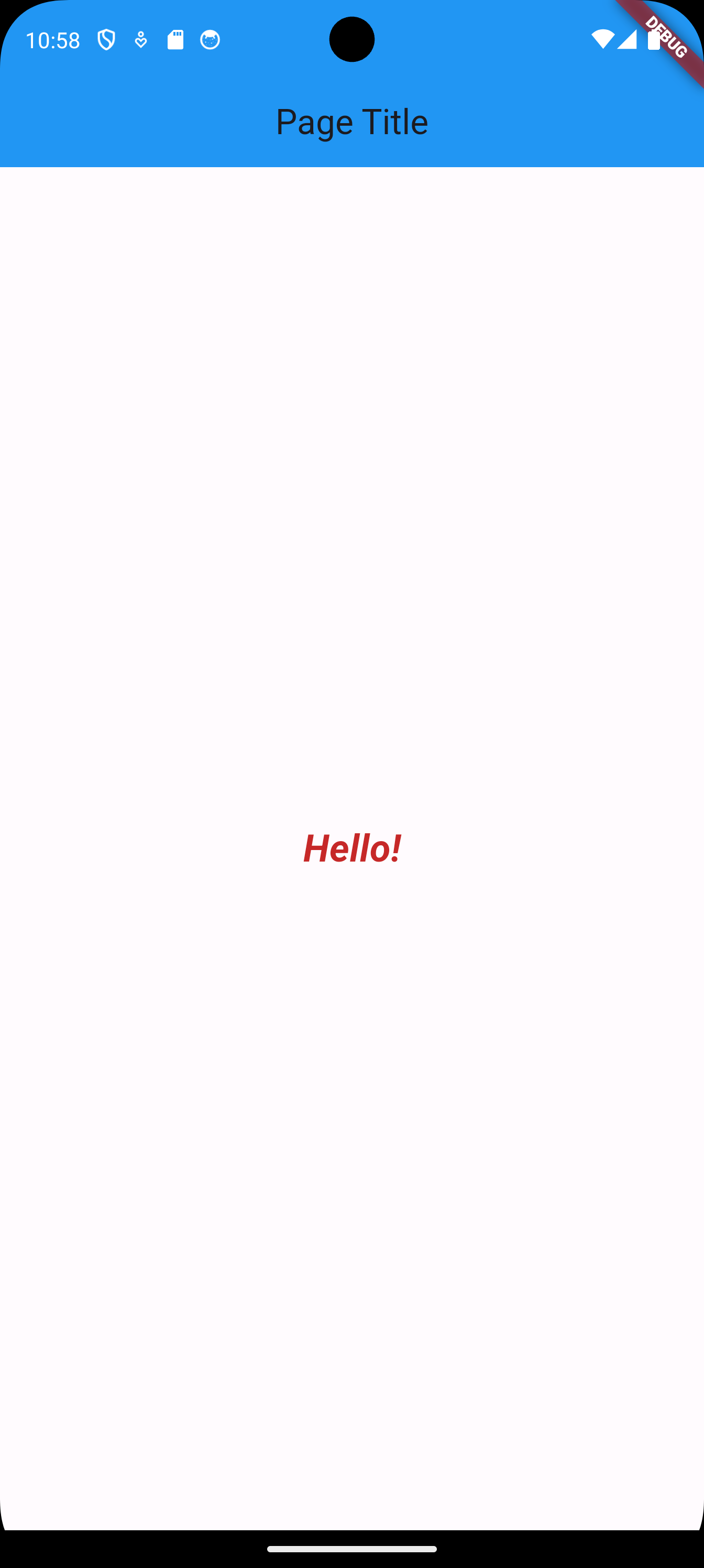
Here, we will change style to italic, bold, and we will change size as well.
import 'package:flutter/material.dart';
void main(){
runApp(MaterialApp(
home: Home(),
));
}
class Home extends StatelessWidget{
@override
Widget build(BuildContext context)
{
return Scaffold(
appBar: AppBar(
title: const Text('Page Title'),
centerTitle: true,
backgroundColor: Colors.blue[500],
),
body: Center(
child: Text('Hello!',
// we add a style parameter which is a TextStyle widget
style: TextStyle(
// choose a color for the TextStyle widget
color: Colors.red[800],
// a style
fontStyle: FontStyle.italic,
// a size
fontSize: 24,
// a boldness
fontWeight: FontWeight.bold,
),
),
),
);
}
}
1.6 Changing the Font
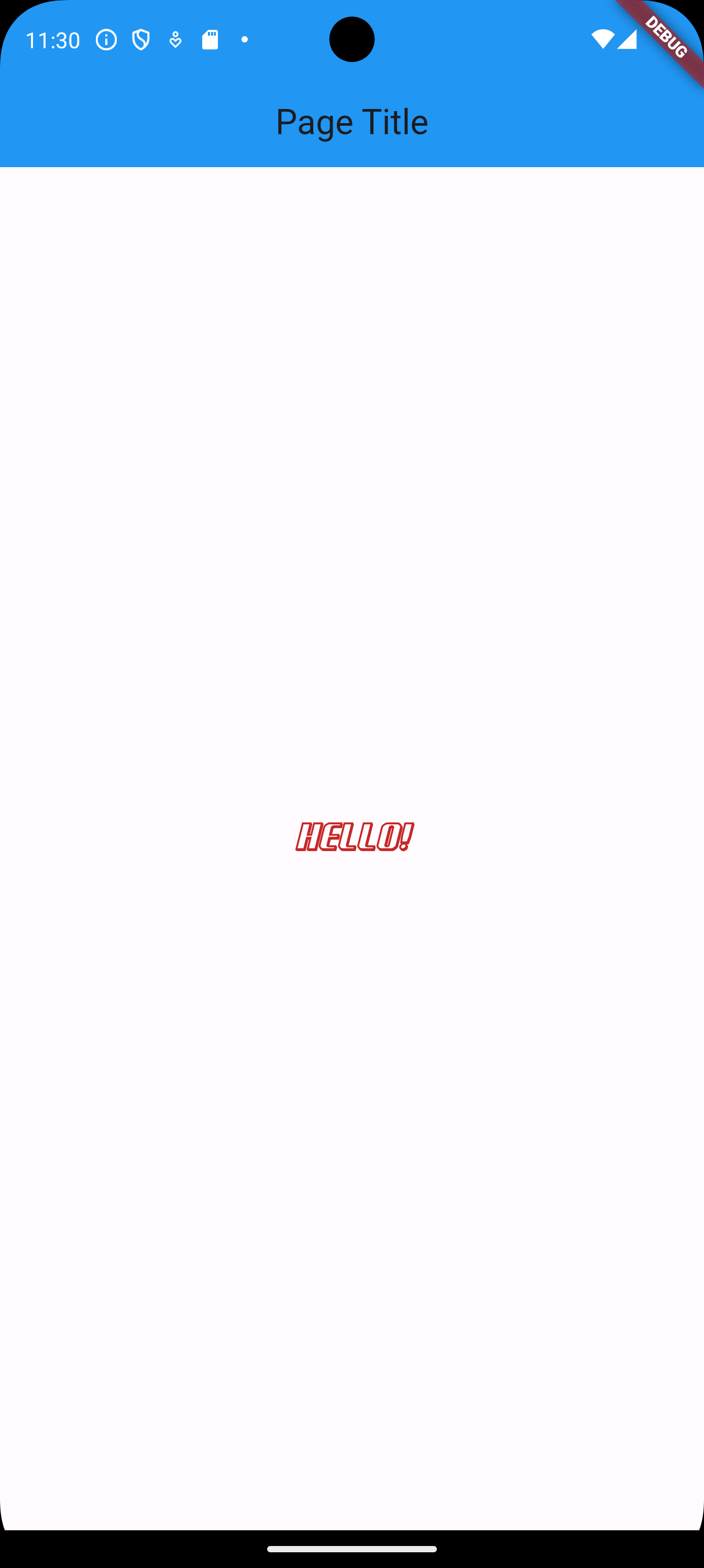
If a font other than the default font is to be used, it must be supplied with the app.
-
We first need to obtain the font by downloading it (or creating it for the enthusiastic).
-
We need to create a folder in the IDE for the font, and then drag and drop the font file from the file manager to the created folder in the IDE.
-
Then, we need to modify the
pubspec.yamlby adding the following information at the bottom. The filepubspec.yamlis very sensitive about spaces, so always indent by exactly two spaces.flutter: uses-material-design: true # This is where I am adding the font fonts: # The name I am choosing for this font is NormandyBeach - family: NormandyBeach fonts: # This is the path to the font in the project - asset: lib/assets/fonts/NormandyBeach3DItalic.otf
After that, we can use the new font as follows.
import 'package:flutter/material.dart';
void main(){
runApp(MaterialApp(
home: Home(),
));
}
class Home extends StatelessWidget{
@override
Widget build(BuildContext context)
{
return Scaffold(
appBar: AppBar(
title: const Text('Page Title'),
centerTitle: true,
backgroundColor: Colors.blue[500],
),
body: Center(
child: Text('Hello!',
style: TextStyle(
color: Colors.red[800],
fontStyle: FontStyle.italic,
fontSize: 24,
fontWeight: FontWeight.bold,
// a font family
fontFamily: 'NormandyBeach',
),
),
),
);
}
}
1.7 Adding an Image
In order to add an image, we need to perform the following steps.
-
We first need to obtain the image.
-
We need to create a folder in the IDE for the image, and then drag and drop the image file from the file manager to the created folder in the IDE.
-
Then, we need to modify the
pubspec.yamlby adding the following information at the bottom. Again, the filepubspec.yamlis very sensitive about spaces, so always indent by exactly two spaces.flutter: uses-material-design: true # This is where I am adding the font fonts: # The name I am choosing for this font is NormandyBeach - family: NormandyBeach fonts: # This is the path to the font in the project - asset: lib/assets/fonts/NormandyBeach3DItalic.otf # We add images here assets: # We can either specify the folder to add all images to it # Or we can add only the image by specifying its filename # Notice that if the image is in lib/assets/images/subfolder, # it will not be added here - lib/assets/images/
import 'package:flutter/material.dart';
void main(){
runApp(MaterialApp(
home: Home(),
));
}
class Home extends StatelessWidget{
@override
Widget build(BuildContext context)
{
return Scaffold(
appBar: AppBar(
title: const Text('Page Title'),
centerTitle: true,
backgroundColor: Colors.blue[500],
),
body: Center(
child: Image.asset('lib/assets/images/snow-1.png')
),
);
}
}

1.8 Stretching an Image
In the previous example, you can notice two spaces, one at the top of the image, and one at the bottom of the image; which looks unprofessional. In order to stretch the image to fill the whole space, we can use the following (there are other ways).
import 'package:flutter/material.dart';
void main() {
runApp(MaterialApp(
home: Home(),
));
}
class Home extends StatelessWidget {
@override
Widget build(BuildContext context) {
return Scaffold(
appBar: AppBar(
title: const Text('Page Title'),
centerTitle: true,
backgroundColor: Colors.blue[500],
),
body: Center(
// use SizedBox
child: SizedBox.expand(
child: Image.asset(
'lib/assets/images/snow-1.png',
// stretch to fill
fit: BoxFit.fill,
)
),
),
);
}
}
We can also use:
import 'package:flutter/material.dart';
void main() {
runApp(MaterialApp(
home: Home(),
));
}
class Home extends StatelessWidget {
@override
Widget build(BuildContext context) {
return Scaffold(
appBar: AppBar(
title: const Text('Page Title'),
centerTitle: true,
backgroundColor: Colors.blue[500],
),
body: Center(
child: Image.asset(
'lib/assets/images/snow-1.png',
fit: BoxFit.fill,
// stretch by hand
height: double.infinity,
width: double.infinity,
),
),
);
}
}

1.9 Text on Top of Image
If we want to position widgets on top of each other, we use the Stack widget. Let’s position the text we had on top of the image.
import 'package:flutter/material.dart';
void main() {
runApp(MaterialApp(
home: Home(),
));
}
class Home extends StatelessWidget {
@override
Widget build(BuildContext context) {
return Scaffold(
appBar: AppBar(
title: const Text('Page Title'),
centerTitle: true,
backgroundColor: Colors.blue[500],
),
// Use stack
body: Stack(
// Instead of one child widget,
// we use a list of child widgets
children: [
// first child widget is the bottom
// of the stack
Center(
child: Image.asset(
'lib/assets/images/snow-1.png',
fit: BoxFit.fill,
height: double.infinity,
width: double.infinity,
)
),
// second child widget is on top
// of the first child widget
Center(
child: Text('Mountains!',
style: TextStyle(
color: Colors.black,
fontStyle: FontStyle.italic,
fontSize: 60,
fontWeight: FontWeight.bold,
),
),
),
],
),
);
}
}

So far, we have positioned the two widgets on top of each other by using Center for each widget. Now, let’s position the text in a different position than the center.
import 'package:flutter/material.dart';
void main() {
runApp(MaterialApp(
home: Home(),
));
}
class Home extends StatelessWidget {
@override
Widget build(BuildContext context) {
return Scaffold(
appBar: AppBar(
title: const Text('Page Title'),
centerTitle: true,
backgroundColor: Colors.blue[500],
),
body: Stack(
children: [
Center(
child: Image.asset(
'lib/assets/images/snow-1.png',
fit: BoxFit.fill,
height: double.infinity,
width: double.infinity,
)
),
Align(
alignment: Alignment.topCenter,
child: Text('Mountains!',
style: TextStyle(
color: Colors.black,
fontStyle: FontStyle.italic,
fontSize: 60,
fontWeight: FontWeight.bold,
),
),
),
],
),
);
}
}

If we want to fine-tune the position of the text a little further, we use the Container widget with padding as follows.
import 'package:flutter/material.dart';
void main() {
runApp(MaterialApp(
home: Home(),
));
}
class Home extends StatelessWidget {
@override
Widget build(BuildContext context) {
return Scaffold(
appBar: AppBar(
title: const Text('Page Title'),
centerTitle: true,
backgroundColor: Colors.blue[500],
),
body: Stack(
children: [
Center(
child: Image.asset(
'lib/assets/images/snow-1.png',
fit: BoxFit.fill,
height: double.infinity,
width: double.infinity,
)
),
Align(
alignment: Alignment.topCenter,
child: Container(
// Around the container
margin: EdgeInsets.only(top: 100),
// Inside the container,
// around the text
//padding: EdgeInsets.all(10),
child: Text(
'Mountains!',
style: TextStyle(
color: Colors.black,
fontStyle: FontStyle.italic,
fontSize: 60,
fontWeight: FontWeight.bold,
),
),
),
),
],
),
);
}
}

1.10 Columns, Rows, and Containers
Let’s build a grid of nice cells.
import 'package:flutter/material.dart';
void main() {
runApp(MaterialApp(
home: Home(),
));
}
class Home extends StatelessWidget {
@override
Widget build(BuildContext context) {
return Scaffold(
appBar: AppBar(
title: const Text('Page Title'),
centerTitle: true,
backgroundColor: Colors.blue[500],
),
body: Column(
children: [
Row(
children: [
Container(
color: Colors.purple,
child: Text('1'),
),
Container(
color: Colors.blue,
child: Text('2'),
),
Container(
color: Colors.green,
child: Text('3'),
),
]
),
Row(
children: [
Container(
color: Colors.red,
child: Text('4'),
),
Container(
color: Colors.orange,
child: Text('5'),
),
Container(
color: Colors.amber,
child: Text('6'),
),
]
),
Row(
children: [
Container(
color: Colors.pink,
child: Text('7'),
),
Container(
color: Colors.brown,
child: Text('8'),
),
Container(
color: Colors.grey,
child: Text('9'),
),
]
),
],
),
);
}
}

In order to stretch the cells of the grid across the entire screen, we apply the widget Expanded on Container.
Let’s apply it to the first container.
import 'package:flutter/material.dart';
void main() {
runApp(MaterialApp(
home: Home(),
));
}
class Home extends StatelessWidget {
@override
Widget build(BuildContext context) {
return Scaffold(
appBar: AppBar(
title: const Text('Page Title'),
centerTitle: true,
backgroundColor: Colors.blue[500],
),
body: Column(
children: [
Row(
children: [
Expanded(
child: Container(
color: Colors.purple,
child: Text('1'),
),
),
Container(
color: Colors.blue,
child: Text('2'),
),
Container(
color: Colors.green,
child: Text('3'),
),
]
),
Row(
children: [
Container(
color: Colors.red,
child: Text('4'),
),
Container(
color: Colors.orange,
child: Text('5'),
),
Container(
color: Colors.amber,
child: Text('6'),
),
]
),
Row(
children: [
Container(
color: Colors.pink,
child: Text('7'),
),
Container(
color: Colors.brown,
child: Text('8'),
),
Container(
color: Colors.grey,
child: Text('9'),
),
]
),
],
),
);
}
}

We then apply Expanded to the rows and the containers. We also need to wrap Text inside Center to allow Container to fill up the vertical space.
import 'package:flutter/material.dart';
void main() {
runApp(MaterialApp(
home: Home(),
));
}
class Home extends StatelessWidget {
@override
Widget build(BuildContext context) {
return Scaffold(
appBar: AppBar(
title: const Text('Page Title'),
centerTitle: true,
backgroundColor: Colors.blue[500],
),
body: Column(
children: [
Expanded(
child: Row(
children: [
Expanded(
child: Container(
color: Colors.purple,
child: Center(
child: Text('1'),
),
),
),
Expanded(
child: Container(
color: Colors.blue,
child: Center(
child: Text('2'),
),
),
),
Expanded(
child: Container(
color: Colors.green,
child: Center(
child: Text('3'),
),
),
),
]
),
),
Expanded(
child: Row(
children: [
Expanded(
child: Container(
color: Colors.red,
child: Center(
child: Text('4'),
),
),
),
Expanded(
child: Container(
color: Colors.orange,
child: Center(
child: Text('5'),
),
),
),
Expanded(
child: Container(
color: Colors.amber,
child: Center(
child: Text('6'),
),
),
),
],
),
),
Expanded(
child: Row(
children: [
Expanded(
child: Container(
color: Colors.pink,
child: Center(
child: Text('7'),
),
),
),
Expanded(
child: Container(
color: Colors.brown,
child: Center(
child: Text('8'),
),
),
),
Expanded(
child: Container(
color: Colors.grey,
child: Center(
child: Text('9'),
),
),
),
],
),
),
],
),
);
}
}

2 Flutter Knowledge Base
2.1 Widgets
Flutter is a reactive, declarative, and composable library for building user interfaces, similar to ReactJS, but with a key difference—Flutter includes its own complete rendering engine. In essence, you create mobile UIs by composing smaller components known as widgets. Everything in Flutter is a widget, which are simply Dart classes responsible for describing their views. Widgets define the structure, styles, animations, and every other aspect of the UI.

Everything in Flutter consists of widgets inside widgets inside widgets. Some widgets maintain state: for example, a quantity widget that tracks how many items to add to the cart. When a widget’s state changes, the framework is notified and compares the new widget tree description to the previous one, updating only the necessary widgets. In the case of the cart example, when a user presses the "+" button on the quantity widget, it updates its internal state, signaling Flutter to repaint all widgets that depend on that state (such as the text widget). Figure 1.4 illustrates a wireframe of the widgets before and after pressing the "+" IconButton.

A widget in Flutter can define any aspect of an application’s view. Some widgets, like Row, define layout properties, while others, like Button and TextField, define structural elements. Even the root of the application itself is a widget.
For reference, here are some of the most common types of widgets:
-
Layout —
Row,Column,Scaffold,Stack -
Structural —
Button,Toast,MenuDrawer -
Styling —
TextStyle,Color -
Animations —
FadeInPhoto, transformations -
Positioning and Alignment —
Center,Padding

2.2 Flutter App Classes: MaterialApp, CupertinoApp, and WidgetsApp
Flutter offers different foundational app classes, each suited for specific design languages and use cases. The primary classes are MaterialApp, CupertinoApp, and WidgetsApp. Each of these classes provides a different set of functionalities and design principles, catering to diverse platform needs.
2.2.1 MaterialApp
Definition: MaterialApp is a high-level app class in Flutter that is built on top of WidgetsApp. It incorporates Google’s Material Design language and offers a comprehensive set of widgets and features designed to follow Material Design guidelines.
Use Case: It is the go-to class for apps that are built to follow Material Design, making it ideal for Android apps or Flutter apps targeting multiple platforms where Material Design consistency is desired.
Features:
-
Provides Material Design-specific widgets such as
Scaffold,AppBar,FloatingActionButton, etc. -
Includes theme management through
ThemeDatafor easy customization of the look and feel of the app. -
Supports advanced routing and navigation features.
-
Ensures visual consistency across different devices by adhering to Material Design principles.
2.2.2 CupertinoApp
Definition: CupertinoApp is another app class in Flutter, specifically designed to provide an iOS-style user interface. It adheres to Apple’s Human Interface Guidelines and includes Cupertino-style widgets.
Use Case: This class is used when building apps that target iOS or when an iOS look and feel is required across platforms. It provides Cupertino (iOS) specific components and designs for a native iOS experience.
Features:
-
Offers Cupertino widgets such as
CupertinoNavigationBar,CupertinoTabBar,CupertinoButton, etc. -
Provides an iOS-themed UI with support for native-style transitions, navigation, and gestures.
-
Uses iOS-specific designs, making it ideal for apps where platform fidelity on iOS is a key requirement.
-
Supports iOS-style routing and navigation patterns.
2.2.3 WidgetsApp
Definition: WidgetsApp is a lower-level foundational class in Flutter that provides the basic structure and functionality for any Flutter app. Unlike MaterialApp and CupertinoApp, WidgetsApp does not enforce any design language, allowing for complete custom UI development.
Use Case: It is used when an app requires a fully custom design that does not follow Material or Cupertino guidelines. Developers can use WidgetsApp to build entirely custom UIs from scratch.
Features:
-
Provides core functionality such as navigation, localization, and rendering of widgets.
-
Does not include predefined widgets for any specific design language (like Material or Cupertino).
-
Suitable for custom apps that require flexibility in the user interface without adhering to predefined design systems.
-
Supports accessibility, localization, and other basic app features.
2.2.4 Key Differences
-
Design Language:
MaterialAppsupports Google’s Material Design,CupertinoAppsupports Apple’s iOS design guidelines, whileWidgetsAppis design-agnostic. -
Use Cases:
MaterialAppis used for apps that follow Material Design,CupertinoAppis for iOS-style apps, andWidgetsAppis for fully custom-designed apps. -
Widget Set:
MaterialAppandCupertinoAppcome with a rich set of pre-built widgets for their respective design languages, whileWidgetsAppprovides only the core framework without pre-built design-specific widgets. -
Platform Fidelity:
CupertinoAppis tailored for iOS platform fidelity, whileMaterialAppis for apps that need consistent Material Design across platforms.
2.2.5 Summary
In Flutter, choosing between MaterialApp, CupertinoApp, and WidgetsApp depends on the specific design requirements and the platforms you are targeting. For Material Design-based apps, MaterialApp is the best choice, whereas CupertinoApp should be used for apps requiring an iOS-style UI. If you require a custom design or don’t need predefined design elements, WidgetsApp is the most flexible option.
2.2.6 PlatformApp
Flutter offers another app class called PlatformApp, which is used in conjunction with libraries like flutter_platform_widgets. This class provides a way to dynamically switch between Material and Cupertino styles based on the platform (iOS or Android).
Definition: PlatformApp is a wrapper provided by third-party libraries such as flutter_platform_widgets. It allows developers to create apps that automatically adjust their design and components according to the platform on which they are running (iOS or Android). It bridges the gap between MaterialApp and CupertinoApp, offering a hybrid approach that adapts to the platform at runtime.
Use Case: This class is ideal for apps that need to maintain a consistent user experience across platforms while adapting to each platform’s native design language. For instance, it enables an app to use Material widgets on Android and Cupertino widgets on iOS without writing separate code for each platform.
Features:
-
Dynamically switches between Material and Cupertino widgets depending on the platform.
-
Provides platform-aware components that adhere to the native look and feel of Android and iOS.
-
Supports both Material and Cupertino design guidelines in a single app, making it easy to target multiple platforms with minimal effort.
-
Simplifies code maintenance by avoiding the need for conditionally rendering different UI elements for each platform.
2.3 Flutter Widgets: Stateless vs Stateful
In Flutter, the fundamental building blocks of the UI are widgets. Widgets can be categorized into two types: StatelessWidget and StatefulWidget. Understanding the differences between these two types is crucial for developing Flutter applications.
2.3.1 StatelessWidget
Definition: A StatelessWidget is a widget that does not maintain any mutable state. Once created, it remains the same throughout its lifecycle. It is used when the UI does not need to change dynamically after it is built.
Use Case: StatelessWidget is typically used for static content or UI components that do not depend on user interaction or dynamic data. For example, a static screen with only text and images would be a good candidate for a StatelessWidget.
Features:
-
StatelessWidgetis immutable. Once created, it cannot change its properties or re-render itself. -
It is simple and lightweight since it doesn’t involve state management.
-
The widget’s build method is only called once during the widget’s lifecycle.
Example:
class MyStatelessWidget extends StatelessWidget {
@override
Widget build(BuildContext context) {
return Text('Hello, World!');
}
}
2.3.2 StatefulWidget
Definition: A StatefulWidget is a widget that can rebuild itself in response to state changes. It has mutable state that can be updated during its lifecycle, causing the widget to re-render.
Use Case: StatefulWidget is used when the UI needs to change dynamically based on user interactions, input, or asynchronous data. For example, buttons that change appearance when pressed, forms that display validation messages, or data fetched from an API are cases where a StatefulWidget would be necessary.
Features:
-
StatefulWidgetis mutable, allowing it to hold dynamic state and update itself. -
It consists of two parts: the
StatefulWidgetitself and a separateStateclass that manages the widget’s state. -
The widget can rebuild itself whenever its state changes using the
setState()method.
2.3.3 Key Differences
-
State Management:
StatelessWidgetcannot manage state, whileStatefulWidgetcan manage and update its state dynamically. -
UI Updates:
StatelessWidgetis static and cannot change after being built. In contrast,StatefulWidgetcan rebuild itself in response to state changes using thesetState()method. -
Lifecycle:
StatelessWidgethas a simpler lifecycle, where the widget is built once.StatefulWidget, on the other hand, involves the creation and management of a separate state object that can trigger rebuilds during the widget’s lifetime. -
Complexity:
StatefulWidgetis generally more complex to implement due to the need to manage the state, whileStatelessWidgetis simpler and more efficient when dynamic changes are not required.
2.3.4 When to Use Which
StatelessWidget should be used when the UI is static, and no interaction will change its appearance or behavior. It is ideal for components like static headers, labels, or simple layouts.
StatefulWidget is necessary when the widget needs to react to user inputs, asynchronous data changes, or any other event that alters the UI. It is appropriate for forms, animations, counters, or any interactive component.
2.3.5 Summary
The choice between StatelessWidget and StatefulWidget depends on whether the widget’s UI will change dynamically over time. Understanding these two types of widgets allows developers to optimize performance and manage state effectively in Flutter applications.
2.4 BuildContext in the build() Function
In Flutter, the BuildContext parameter in the build function provides a way for a widget to interact with its location in the widget tree. BuildContext is an object that represents the location of a widget in the widget tree. It allows a widget to access information about its parent, child, and surrounding context.
2.5 Scaffold
Scaffold provides a framework for implementing the basic visual layout structure of Material Design applications. It includes support for app bars, drawers, bottom navigation bars, floating action buttons, and snack bars. It simplifies the management of common UI elements and provides a consistent layout.
You do not have to use a Scaffold in every Flutter application, but it is highly recommended for certain types of applications, especially those that follow the Material Design guidelines.